


I bought a Kindle book yesterday, but it won't download to my Kindle Paperwhite. Has anyone else run into this?
Amazon's Kindle Store is one of the world's largest ebook vendors, giving readers several ways to access their books: Kindle e-ink devices, the Kindle app, and Kindle Fire tablets. So when a Kindle book refuses to download, it's genuinely frustrating — especially if you're not sure why it's happening.
The good news is that most download failures trace back to a handful of known causes. Below, I'll walk through the specific scenarios first, then cover general troubleshooting steps that resolve the rest.
- Case 0: "Your Kindle App requires an update to view this content"
- Case 1: License Limit Reached
- Case 2: Kindle eTextbook Not Downloading
- Case 3: Samples or Kindle Unlimited Books Not Downloading
- Case 4: Kindle Books Not Downloading Automatically
- Case 5: Kindle App for Android Not Downloading Books
- Case 6: Kindle Book Queued but Not Downloading
- Case 7: General Fixes for Kindle Books Not Downloading
Case 0: "Your Kindle App requires an update to view this content" — Item Not Available for This Device Type
Kindle for Mac or Kindle for PC won't download books?

Amazon periodically updates the file format used for PC/Mac downloads, and older versions of the Kindle app can't open or read the new format. If you're hit with this issue, you'll usually see a pop-up telling you to update Kindle for PC/Mac before you can view the content.
Solution: Update Kindle for PC or Mac to the latest version
If you just want to read within the Kindle ecosystem, update your app to the newest version and re-download the book.
Download the latest version of Kindle App
Pro tip: Epubor Ultimate now supports the latest versions of Kindle for PC, Kindle for Windows and Kind for Mac V7.53. If you're looking to remove Kindle DRM, be sure to download your books through the newest Kindle for PC/Mac desktop app first.
Then grab the latest version of Epubor Ultimate to decrypt your Kindle books.

Case 1: License Limit Reached
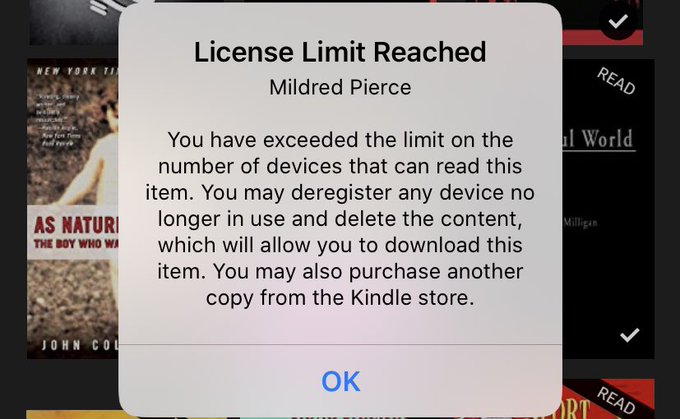
This message means you've hit the simultaneous-device limit for that particular book. Per Amazon's Kindle Store terms, "Kindle content is licensed, not sold, to you by the Content Provider," and most publishers cap how many devices or apps can host a title at once.
The typical limit is 6 devices per user, though this varies by publisher and region. Where a limit applies, it's usually noted on the book's product page, as shown below.

Solution: Download the book to a different device, or deregister a device you no longer use:
Go to Manage Your Content and Devices, open the "Devices" tab, select an unused device, then click "Device Actions" ? "Deregister." Try downloading the book again afterward.

Case 2: Kindle eTextbook Not Downloading
eTextbooks fail to download more often than standard ebooks because they carry stricter restrictions.
1. Compatibility: Some eTextbooks aren't supported on Kindle e-ink readers or Kindle Cloud Reader, and require the latest Kindle for PC/Mac.

2. Device limits: Many eTextbooks can only be active on 2 devices at a time.

Solutions:
1. Check the eTextbook's product page for supported apps and devices — most require the latest Kindle for PC/Mac.
2. Confirm the book hasn't already reached its maximum device count.
Case 3: Samples or Kindle Unlimited Books Not Downloading

Error Message: PCMAC_126_Delivery_Error_Upgrade_Mac
If you're downloading Kindle Unlimited titles or samples on an outdated Kindle app for Mac, you may see: "PCMAC_126_Delivery_Error_Upgrade_Mac."
Solution: Install the latest version of the Kindle app for Mac.
Worth knowing: In 2025, Amazon removed "Download and Transfer via USB" for Kindle titles, including purchased kindle books and the kindle unlimited titles.
Case 4: Kindle Books Not Downloading Automatically
I have to tap each book cover to download it. Is there a way to make downloads happen automatically?
Set your primary device as the account default. Go to the "Devices" tab on Amazon, select your Kindle, and click "Set as default device." New purchases will then be sent there automatically.

Case 5: Kindle App for Android Not Downloading Books

This is usually a device-registration glitch, often triggered by a system update. Go to your Amazon account's "Devices" settings and deregister the Android device. Then uninstall the Kindle app, reinstall it, and log back in — Amazon will treat it as a new device, and downloads should resume normally.
Case 6: Kindle Book Queued but Not Downloading

I bought 4 books, and they're stuck showing "queued" on my Kindle. Tapping the title only gives me the option to cancel. Re-delivering the books hasn't helped.
Step 1: Disconnect from Wi-Fi, reconnect, then run a manual Sync.
Step 2: Restart your Kindle.
Step 3: Deregister your Paperwhite, power it off, then register it again — the queue should start downloading right away.
Case 7: General Fixes for Kindle Books Not Downloading
Solution 1: Restart your Kindle.
This simple step resolves most software glitches. See how to restart or factory-reset your Kindle.
Solution 2: Check your wireless connection.
Confirm Wi-Fi is working properly — try toggling Airplane Mode, or connect to a mobile hotspot. If the hotspot works fine, the problem is with your home network.
A low battery can also affect connectivity, so charge your device (ideally above 25%) before attempting large downloads.
Solution 3: Delete and re-download.
If a download is stuck, remove the book from your device and re-download it from the Kindle Cloud. If the app itself is unresponsive, uninstall and reinstall it entirely.
Solution 4: Wait an hour or two.
Sometimes the issue sits on Amazon's end — server-side delivery errors can leave a book stuck at "99.5%" or "Pending." These typically clear up within a few hours.
Solution 5: Deregister and re-register your device.
This clears cached data and any lingering registration errors.
Solution 6: Update your Kindle firmware.
Outdated firmware can block downloads. Go to Settings ? Device Options ? Advanced Options ? Update Your Kindle. If the option is greyed out, your device is already current.

Solution 7: Check your order and payment method.
Confirm the purchase actually went through in your Digital Orders, and that the card on your "1-Click" payment method is valid.
Solution 8: Manually deliver the book to a specific device.
Use Manage Your Content and Devices to "Deliver" the book directly to your device or app.
Solution 9: Hard reboot.
As a last resort, hold the power button for a full 20 seconds until the screen flickers and the Kindle splash screen appears with a progress bar. A forced reboot often clears deep-seated errors.
Solution 10: Contact Amazon Support.
If nothing above works, reach out to Amazon Support directly.
Reminder: "Download and Transfer via USB" Has Been Discontinued

This is worth flagging on its own: if you've relied on "Download & Transfer" (D&T) to back up your books, that option is gone for most titles now. Back up your library while you still can — and keep it in DRM-free EPUB format so it stays readable no matter what Amazon changes next.
Those are the most reliable fixes for Kindle books that won't download. Found another solution that worked for you? Share it in the comments below.
Once your Kindle books finally download, it's worth backing them up locally. Because Kindle books are DRM-protected, a standard backup only gets you so far — the real fix is converting your library to a DRM-free format. Epubor Ultimate removes Kindle DRM and converts books to EPUB or PDF, so your library stays yours.


Iris Yan Marketing Architect at Epubor since 2017, drives the brand’s product design, advertising, and all-channel strategy.


